
eduroam је сервис који омогућава бесплатан приступ интернету у институцијама широм света. За пријаву користите ФОН налог.eduroam gives free internet access at institutions around the world. Sign in with your FON account.
Лаптоп рачунариLaptops
Преузмите инсталерDownload the installer
Идите на cat.eduroam.org и преузмите eduroam инсталер.Go to cat.eduroam.org and download the eduroam installer.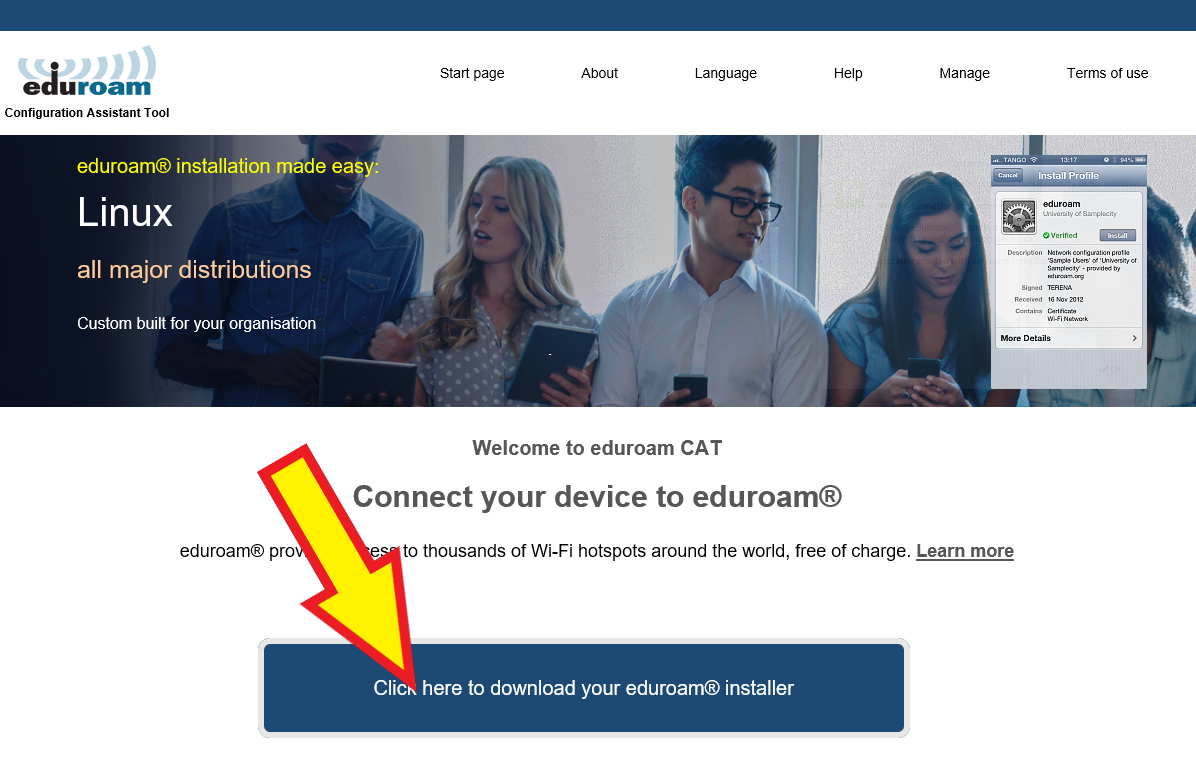
Изаберите институцијуSelect the institution
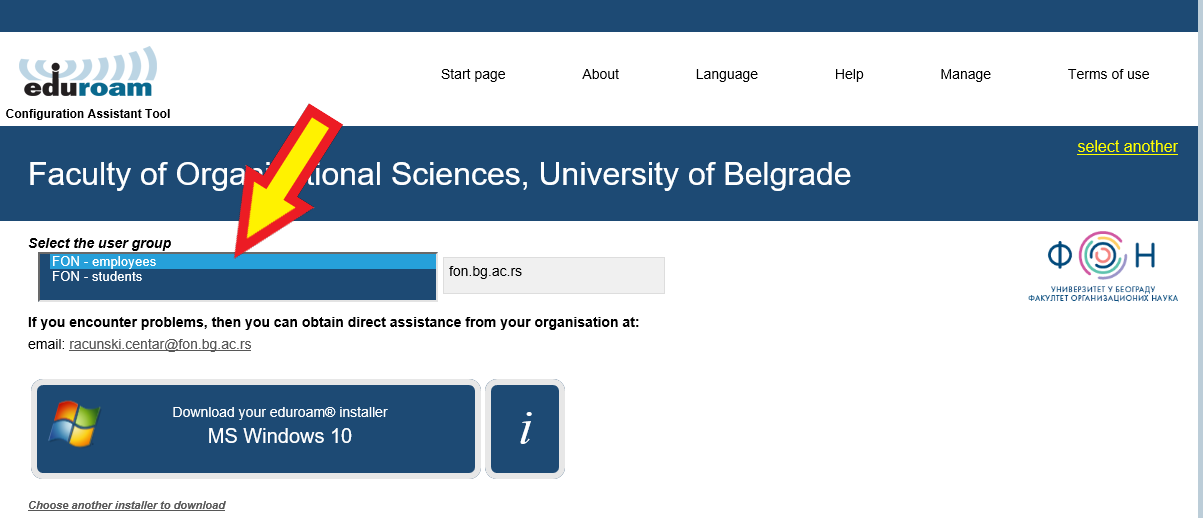
Изаберите „Факултет организационих наука, Универзитет у Београду“. Можда ће бити потребно да проширите листу опцијом „…show more“.Choose “Faculty of Organizational Sciences, University of Belgrade”. You may need to expand the list with “…show more”.
Изаберите групу и системSelect group and OS
Изаберите групу (запослени или студенти) и преузмите инсталер за ваш оперативни систем. Ако страница не препозна систем, изаберите други инсталер.Select your group (employees or students) and download the installer for your operating system. If the page does not detect it, choose another installer.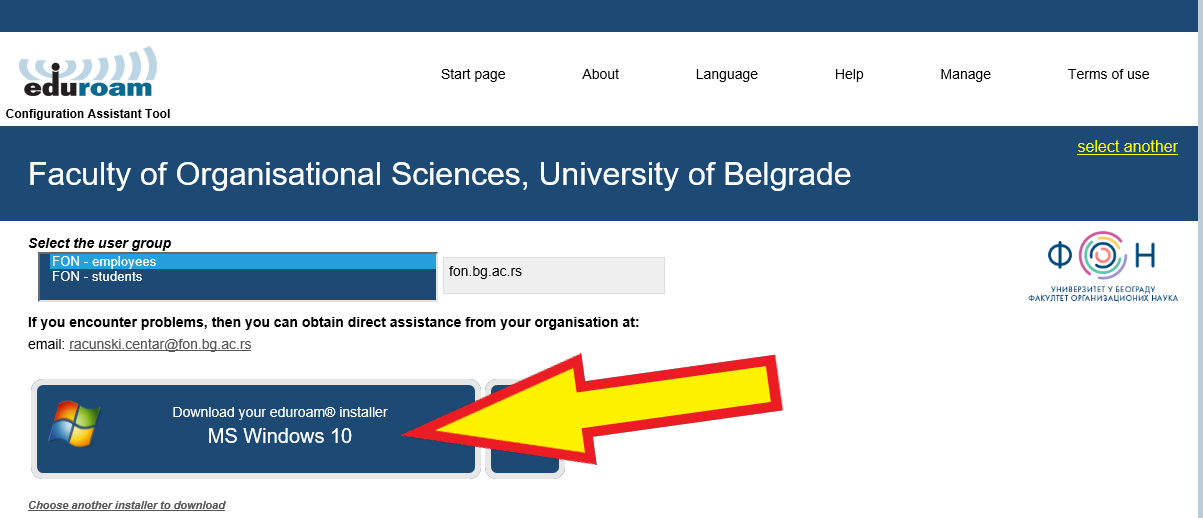
Покрените инсталерRun the installer
Унесите ФОН креденцијале и потврдите додатну апликацију коју инсталира.Enter your FON credentials and confirm the additional application it installs.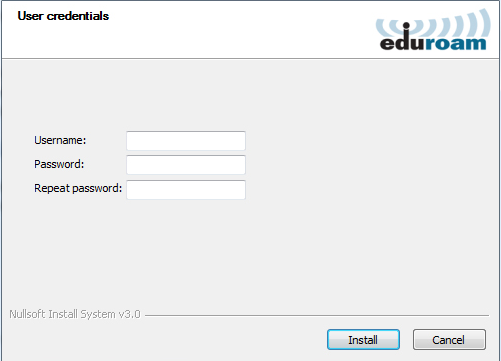
Android
Инсталирајте апликацијуInstall the app
Инсталирајте „eduroam CAT“ из Google Play-а.Install “eduroam CAT” from Google Play.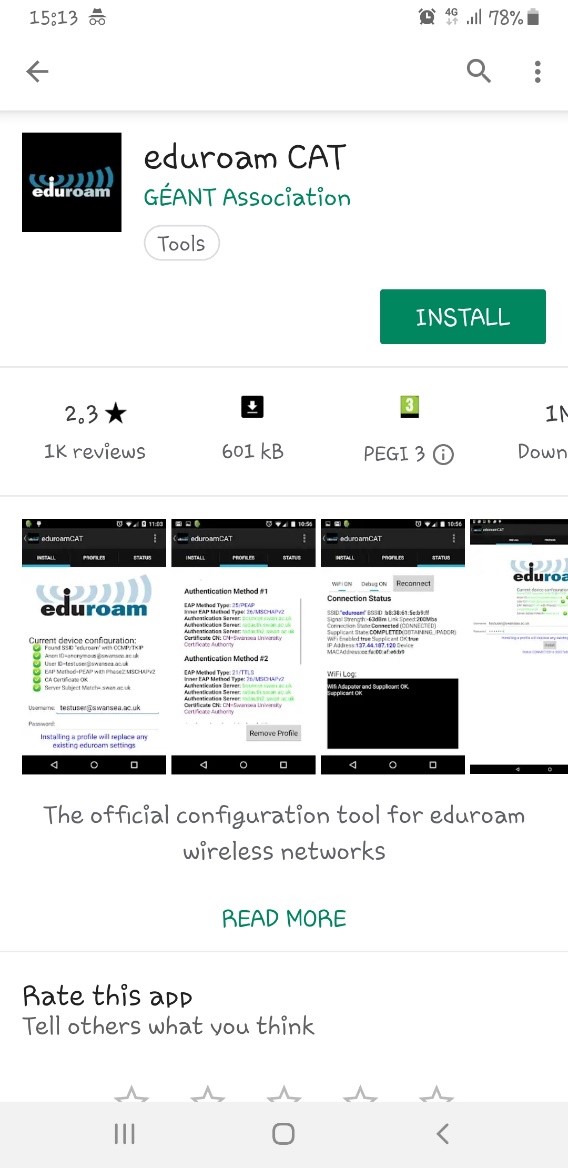
Изаберите институцијуSelect the institution
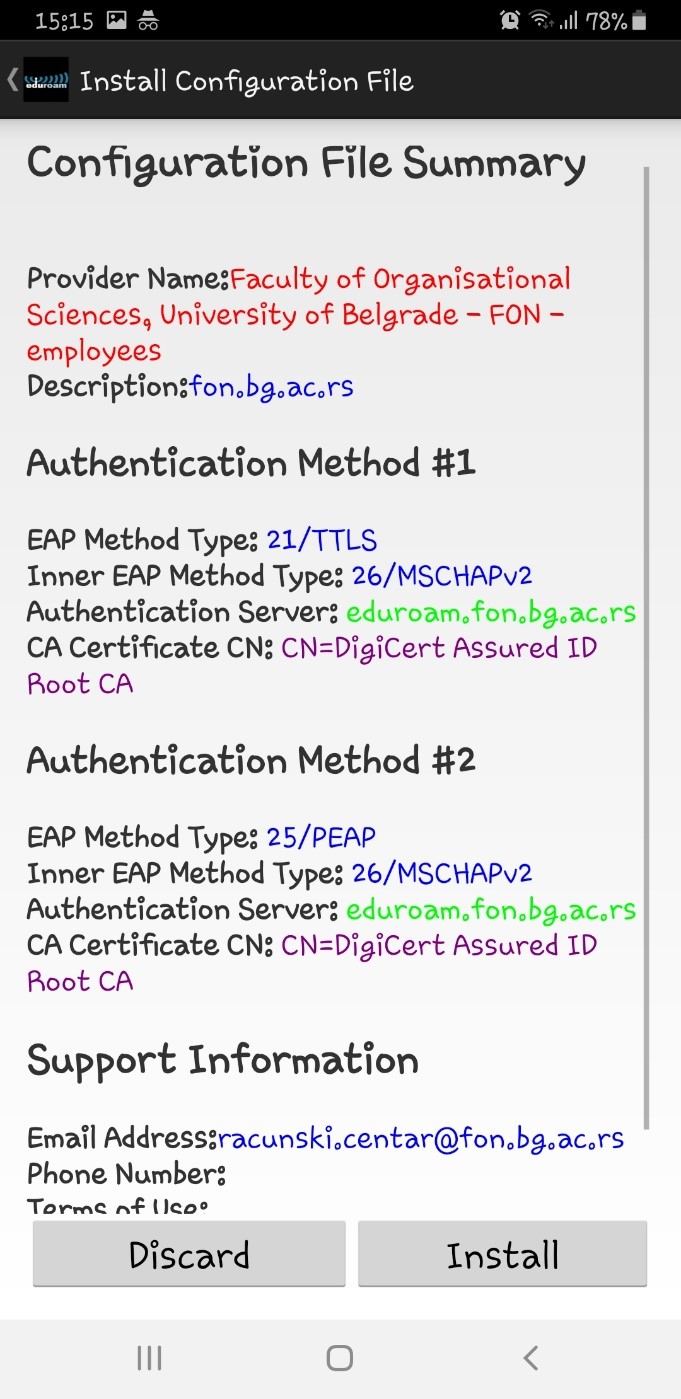
Изаберите институцију, па унесите ФОН корисничко име и лозинку.Select the institution, then enter your FON username and password.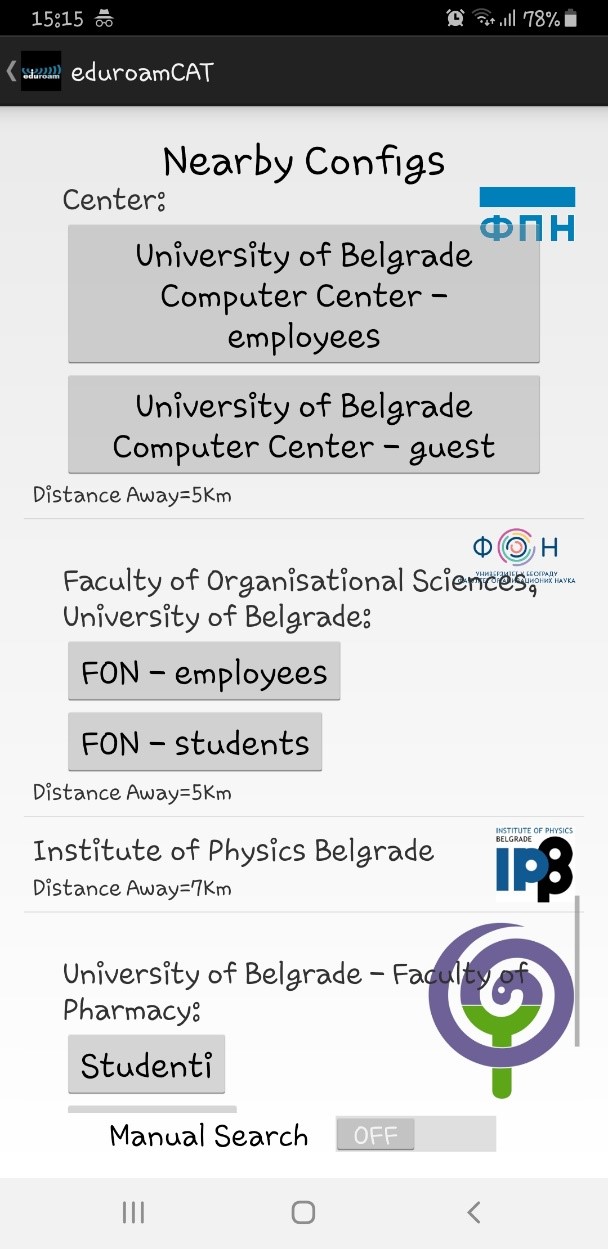
ГотовоDone
Апликација инсталира eduroam Wi-Fi профил.The app installs the eduroam Wi-Fi profile.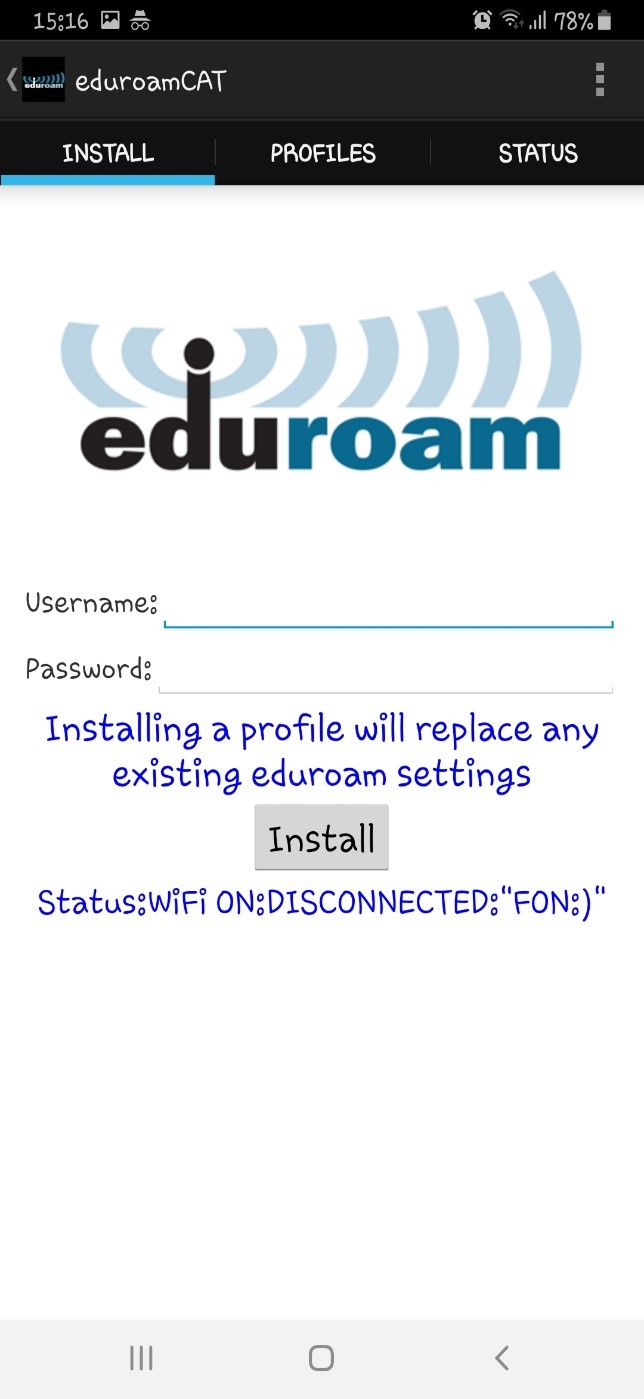
Windows 10: ручно подешавањеWindows 10: manual setup
Ако инсталер не ради, eduroam профил можете направити ручно.If the installer does not work, you can create the eduroam profile manually.
- Десним кликом на Windows дугме (доле лево) изаберите „Network Connections“, па „Network and Sharing Center“.Right-click the Windows button (bottom left), choose “Network Connections”, then “Network and Sharing Center”.
- Кликните „Set up a new connection or network“, изаберите „Manually connect to a wireless network“ и притисните „Next“.Click “Set up a new connection or network”, choose “Manually connect to a wireless network” and click “Next”.
- У поље „Network name“ упишите eduroam, као „Security type“ изаберите WPA2-Enterprise и притисните „Next“.In “Network name” type eduroam, set “Security type” to WPA2-Enterprise and click “Next”.
- Кликните „Change connection settings“, отворите картицу „Security“ и притисните „Settings“. Искључите опцију „Verify the server’s identity by validating the certificate“ и потврдите са „OK“.Click “Change connection settings”, open the “Security” tab and click “Settings”. Turn off “Verify the server’s identity by validating the certificate” and confirm with “OK”.
- Притисните „Advanced settings“, укључите „Specify authentication mode“, изаберите „User authentication“ и два пута потврдите са „OK“.Click “Advanced settings”, tick “Specify authentication mode”, choose “User authentication” and confirm with “OK” twice.
- Са листе бежичних мрежа изаберите eduroam и унесите креденцијале ФОН налога.Pick eduroam from the list of wireless networks and enter your FON account credentials.
Ако се појави „A network called eduroam already exists“:If you see “A network called eduroam already exists”: отворите Settings, потражите „Wi-Fi“, изаберите „Manage known networks“, кликните на eduroam и „Forget“, па поновите све кораке.open Settings, search for “Wi-Fi”, choose “Manage known networks”, click eduroam and “Forget”, then repeat all the steps.